Catalog Manager
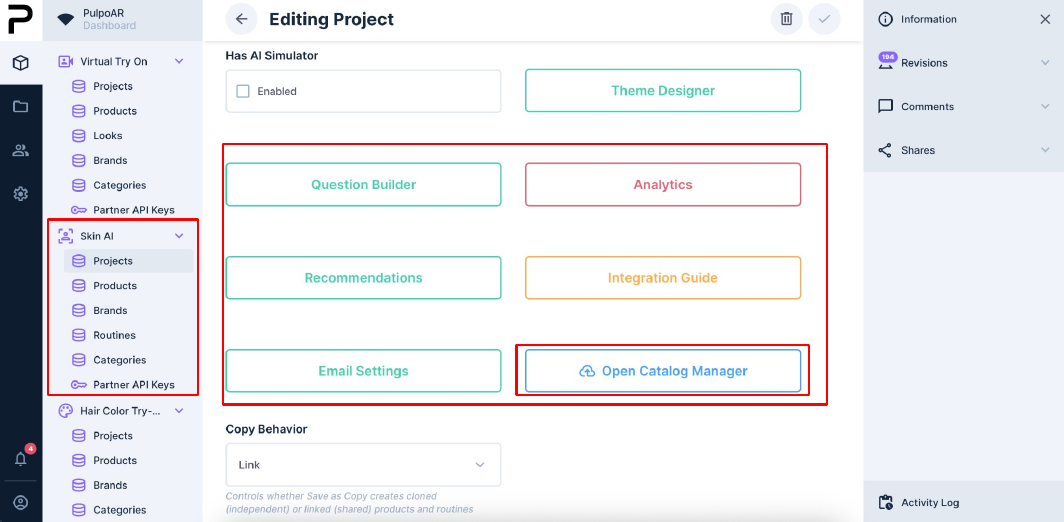
Catalog Manager is where you add and update your catalog and recommendations in bulk, with Excel. Use it for large catalogs, or to set up many recommendations at once. It works like the Makeup Virtual Try-On Catalog Manager, with Skin Analysis records and a Recommendations tab.
Open it with Open Catalog Manager on the project page.
The main page
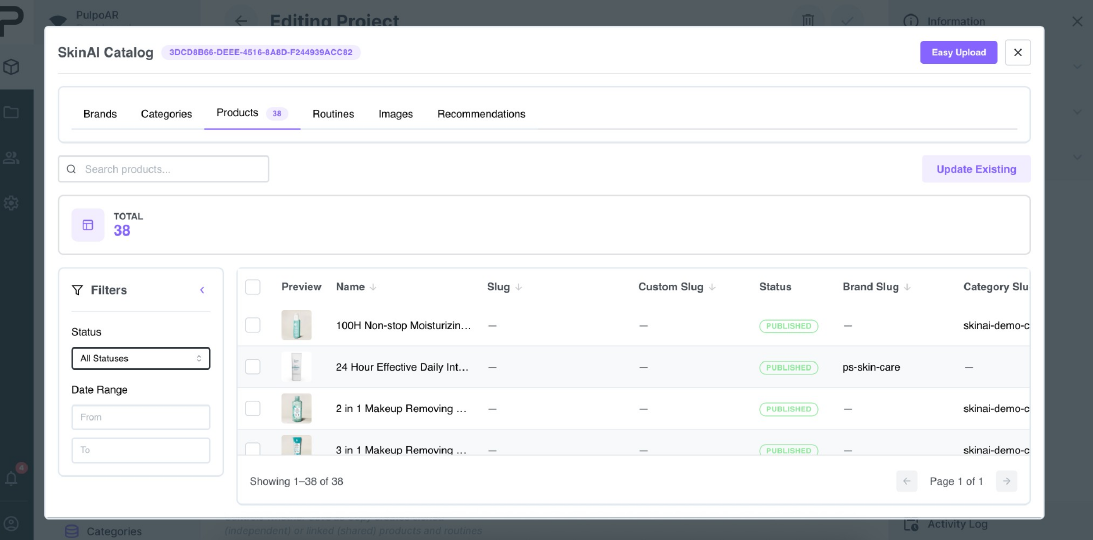
| Area | What it's for |
|---|---|
| Tabs | Brands, Categories, Products, Routines, Images and Recommendations. |
| Search | Find records in the current tab by name. |
| Filters | Filter by status and date range. |
| List | Select records one by one, or with Select page or Select all, to export or delete them. |
| Update Existing | Edit existing records in bulk. |
| Easy Upload | Add new records in bulk. |
Easy Upload
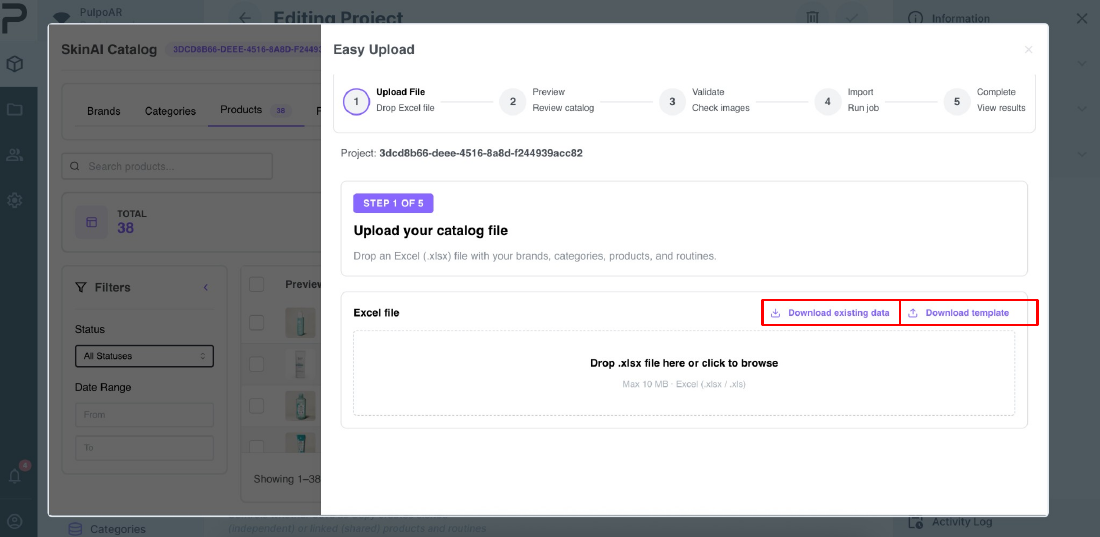
Use Easy Upload to add many new records at once, for example when you set up a new project. It has five steps: Upload, Preview, Validate, Import and Complete.
- Download a starting file:
- Download existing data if the project already has records. Add your new rows to it, so you don't create duplicates.
- Download template if you're starting from scratch.
- Fill in the Excel. Brands, categories, products and routines all go in the same file.
- Drop the file in the upload area. Use
.xlsxor.xls, up to 10 MB. - Check the data in Preview.
- Validate checks images and required fields. Fix any errors before you continue.
- Import saves the records, and Complete shows the result.
Tips
- Always start from a downloaded template or export. Column names and order matter.
- Put product images on a link that won't change before you upload.
- For very large catalogs, upload in batches, for example one brand at a time.
Update Existing
Use Update Existing to change fields on many records at once, such as price, status, description, image, URL, barcode, or brand and category. It has four steps: Upload, Preview, Confirm and Complete.
- Click Export to Excel to download your products. If the project has no products yet, use Easy Upload first.
- Edit the fields you want to change.
- Drop the file in the upload area.
- Check the changes in Preview, then Confirm.
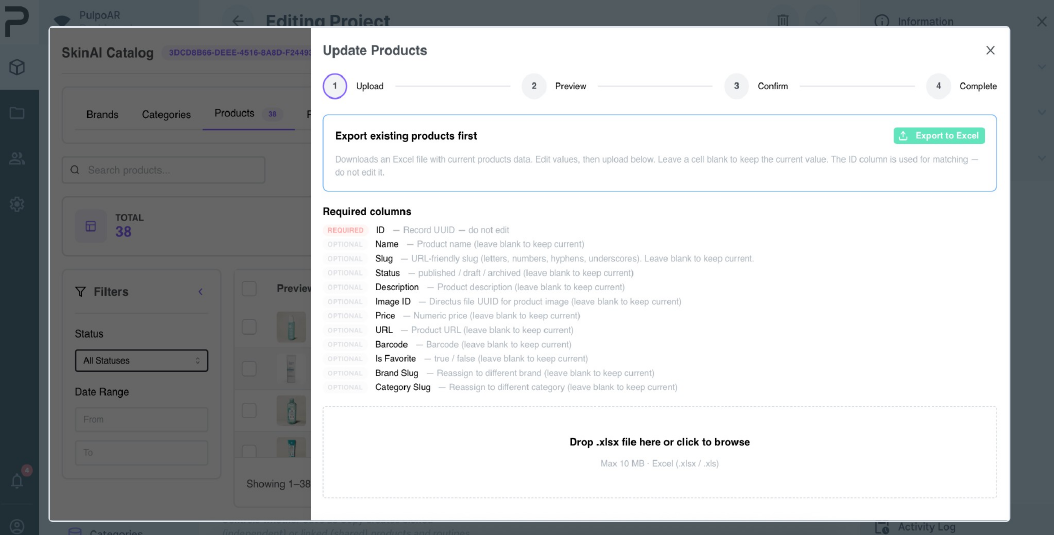
The ID column matches each row to its record. Don't change, reorder or delete it. Leave a cell empty to keep its current value.
Recommendations
The Recommendations tab lists every recommendation in the project, with its status and number of cases, products and routines. It manages the same rules as Recommendations on the project page.
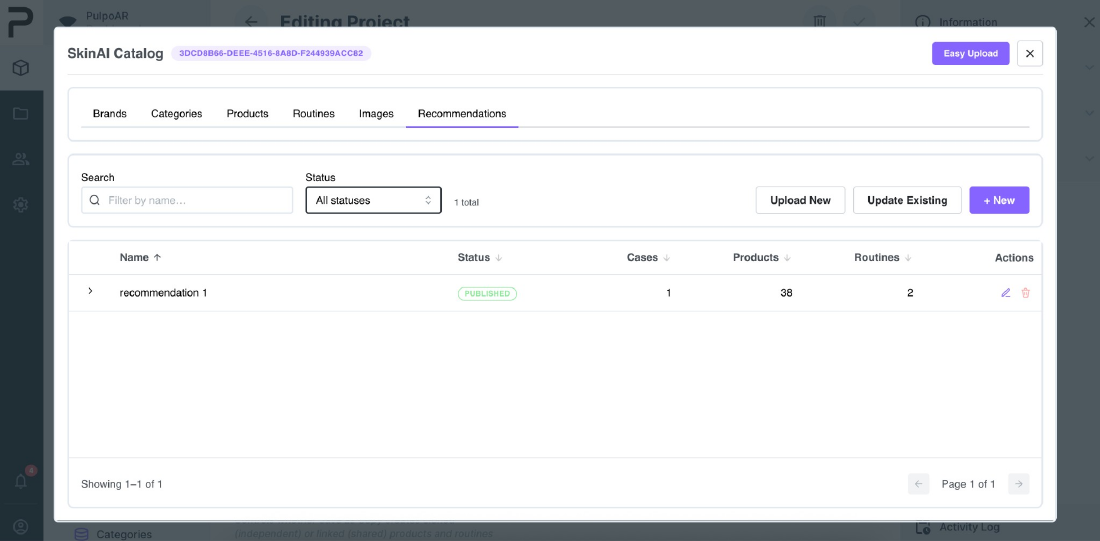
| Button | What it does |
|---|---|
| + New | Create one recommendation. |
| Upload New | Create many recommendations from an Excel template. |
| Update Existing | Export recommendations to Excel, edit names and status, and upload them again. |
| ✎ | Edit a recommendation and its cases. |
Each recommendation has one or more cases. A case is a set of conditions, plus the products and routines to show when the conditions match.
Upload New
Upload New creates recommendations from an Excel template. It has four steps: Upload, Preview, Validate and Complete.
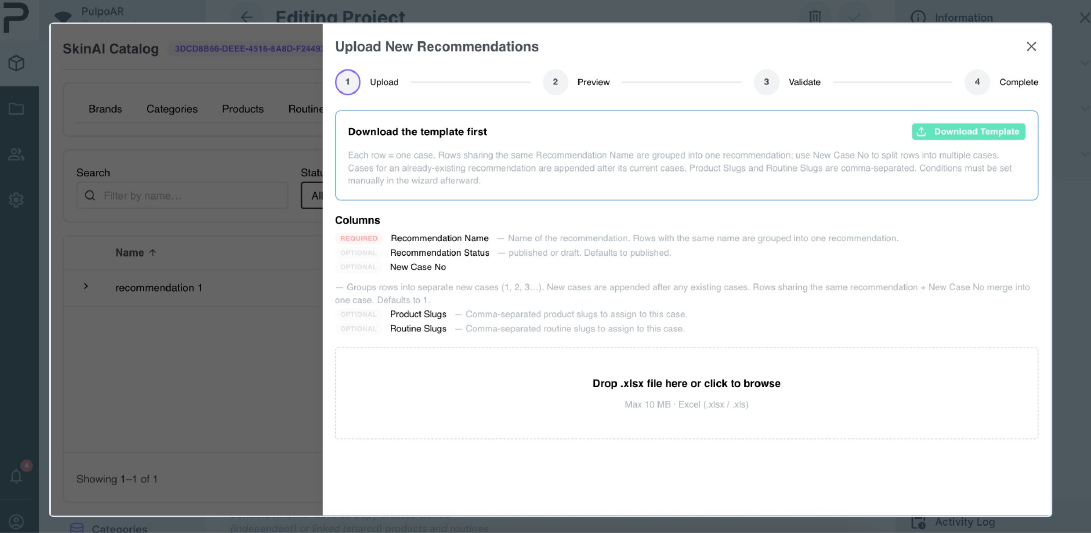
| Column | Description |
|---|---|
| Recommendation Name | Required. Rows with the same name become one recommendation. |
| Recommendation Status | published or draft. The default is published. |
| New Case No | Splits a recommendation into cases. Rows with the same name and case number become one case. |
| Product Slugs / Routine Slugs | Comma-separated slugs of the products and routines to show for the case. |
The template creates recommendations, cases, and their products and routines. Set each case's conditions in the case editor (below).
View a recommendation's cases
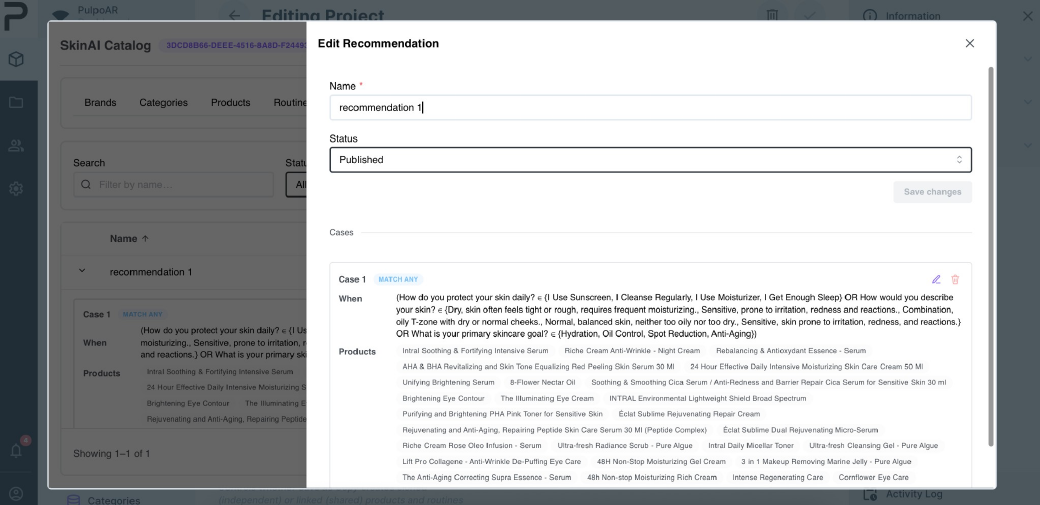
Click the arrow at the left of a row to see its cases without leaving the list. Each case shows its match type (MATCH ANY or MATCH ALL), its conditions (When) and its products.
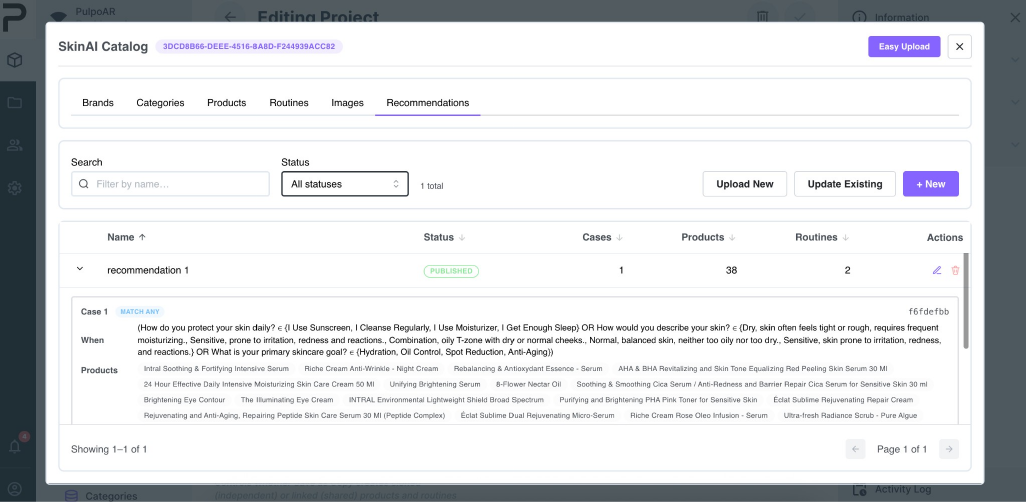
Edit a recommendation
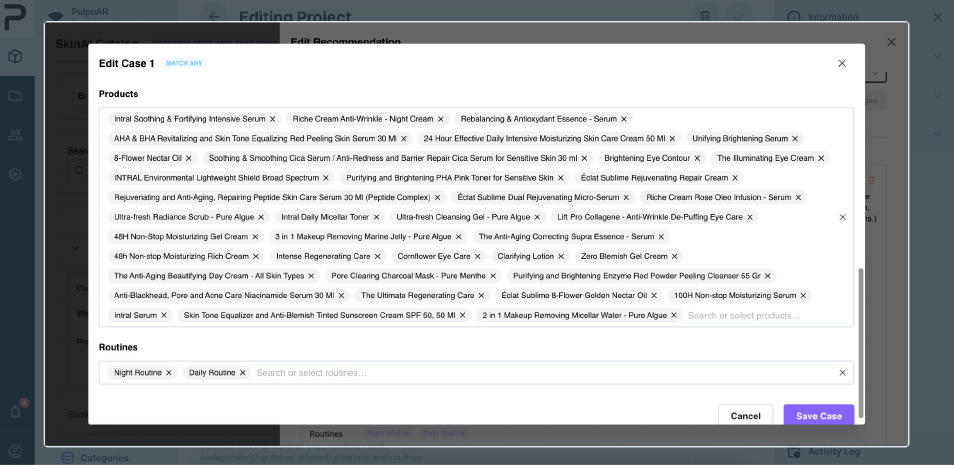
Click ✎ on a row to edit the recommendation's Name and Status and manage its cases. Click ✎ on a case to edit it, or the trash icon to delete it. You can also add a new case here.
Edit a case
Conditions are organized in groups. Each group has its own AND or OR setting, which decides how its rules combine.
- Question rule: choose the Question and the qualifying answers in Answer is one of. Must match at least sets how many of those answers the customer must pick.
- Score rule: choose a skin problem and the score range that triggers the rule.
For example: the customer answered "I use sunscreen" or "I cleanse regularly", and their dryness score is above 60.
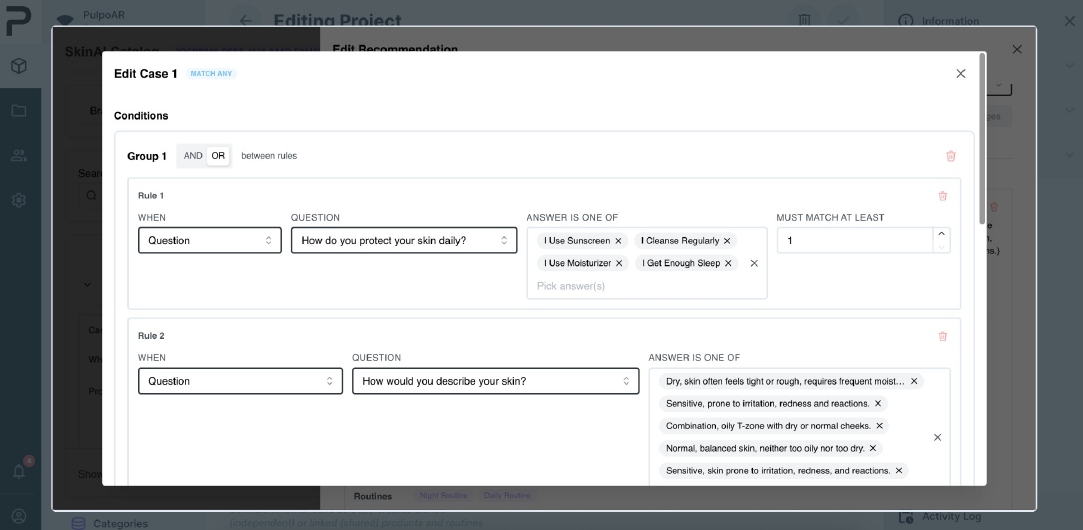
Below the conditions, choose the Products and Routines to show. Click an item to add it, and click X on a chip to remove it. Both must already be in the project. Click Save Case to save the conditions and selections together.