Catalog Manager
Catalog Manager lets you add and update brands, categories, products, variants and images in bulk, using Excel. Use it for anything more than a few items.
Open it with the Open Catalog Manager button on your project page. You can filter the list by brand, project and date.
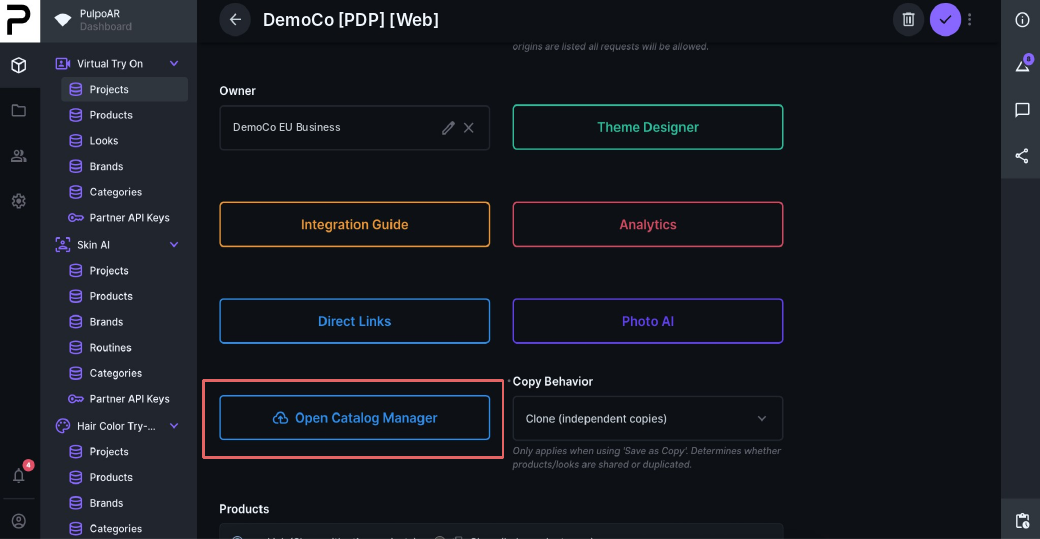
Easy Upload: import a new catalog
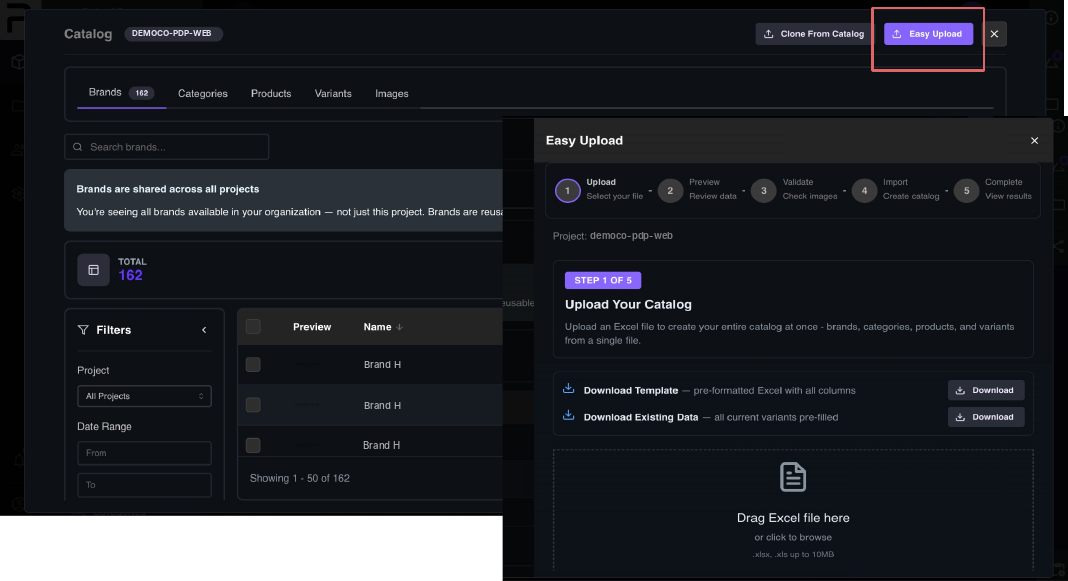
Easy Upload creates brands, categories, products and variants from one Excel file.
- Upload file: download the template, fill it in and upload it (
.xlsxor.xls). You can also export your current data and start from that. - Preview: check that the data was read correctly.
- Validate images: every image link is checked. Fix any that fail.
- Confirm: review how many items will be created.
- Import: the items are created and added to the project.
Tips
- Always start from the template. Column names and order matter.
- Host images somewhere stable before importing.
- For large catalogs, import in smaller batches, for example one brand at a time.
Update Existing: edit in bulk
Use Update Existing to change items that already exist, for example status, stock, prices or descriptions.
- Export the items to Excel. Each row has an ID.
- Edit the file.
- Upload it. Each row is matched to its item by ID.
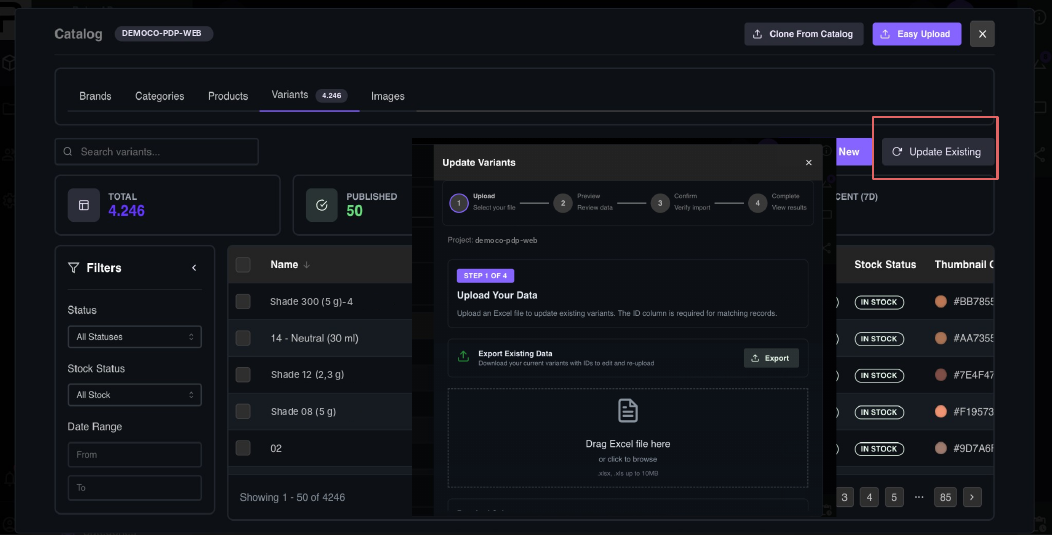
Don't change or delete the ID column.
In the Variants tab you can also export selected variants, or delete them in bulk. Deleting can't be undone.
Clone From Catalog: reuse existing items
Copy brands, categories, products or variants from your other projects instead of creating them again.
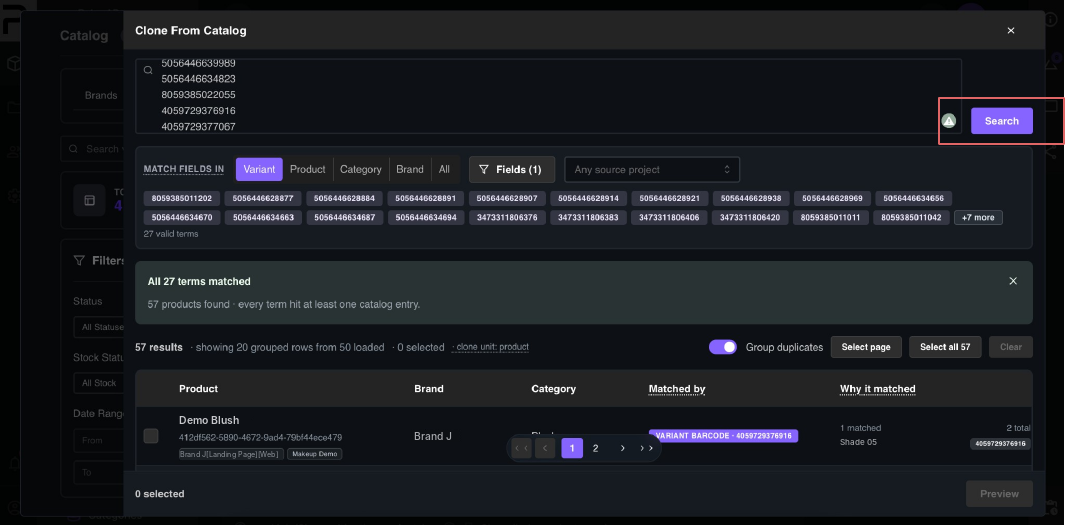
- Search by barcode, slug or name.
- Choose what to copy: variant, product, category, brand or all.
- Select the items and click Preview, then confirm.
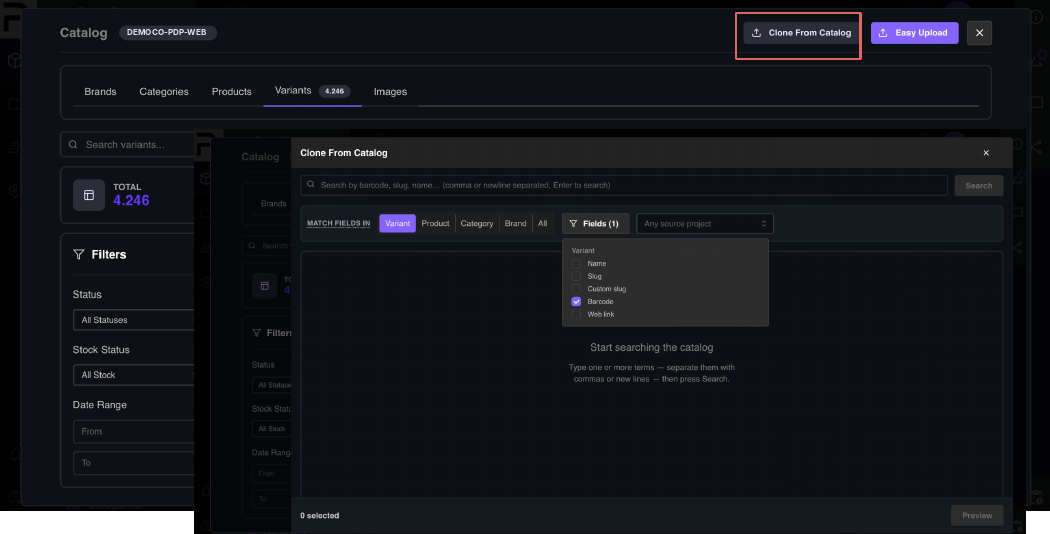
Bulk search
Paste a list of barcodes, product names or web links, separated by commas or new lines. Catalog Manager shows how many matched, for example "27 of 27 terms matched", and why each item matched. Select the results and clone them into your project.
Automate this
To sync your catalog automatically from your own systems, your developers can use the Partner API.