Question Builder
Question Builder is where you create the questionnaire customers answer before or alongside the skin analysis. You can use the answers in recommendation rules.
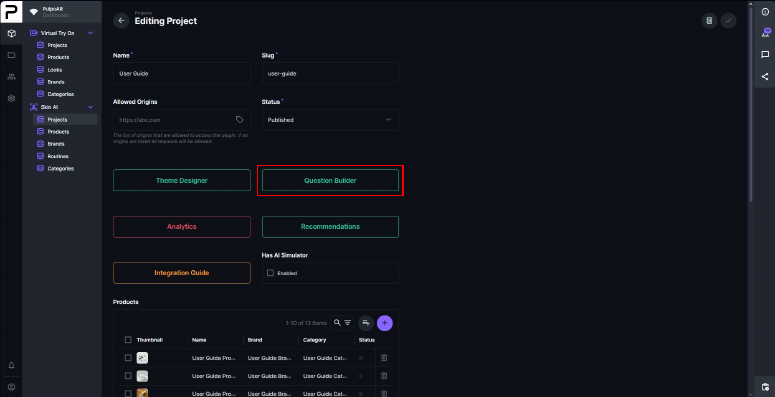
Open it with Question Builder on the project page.
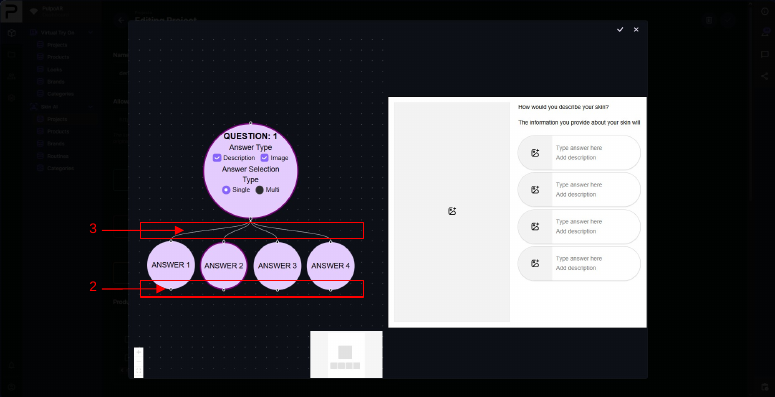
Add questions and answers
The canvas starts with one question and four answers.
- Add a question or answer: drag from the round connection point above or below a bubble. A new, linked bubble is created.
- Delete a question, answer or connection: click it and press Backspace.
You can add as many questions and answers as you need. The preview on the right shows what customers see.
Question settings
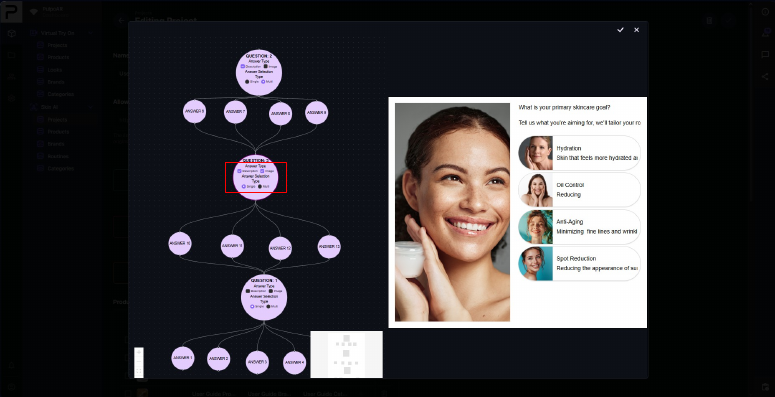
Each question bubble has two settings:
| Setting | Options |
|---|---|
| Answer Type | Description adds a description to each answer. Image adds an image to each answer. |
| Answer Selection | Single: customers pick one answer. Multi: customers can pick several. |
info
If you turn on Description or Image, fill it in for every answer. You can't save the question until you do.