Recommendations
Recommendations decide which products and routines each customer sees after the analysis. You set them up as rules, based on the customer's questionnaire answers and skin scores.
Open them with Recommendations on the project page.
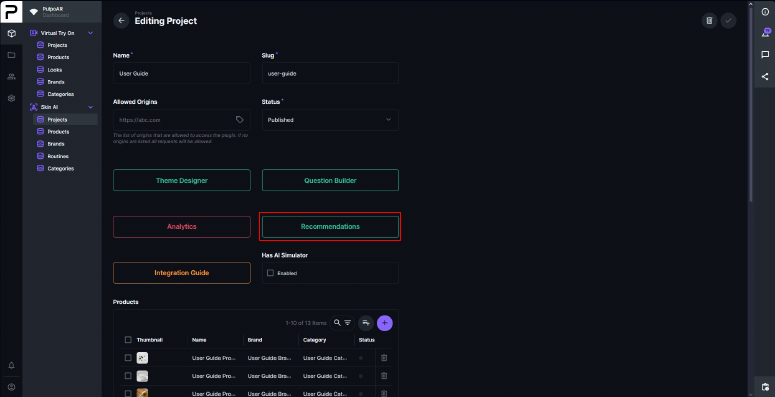
To set up many recommendations at once, use Catalog Manager.
The recommendations list
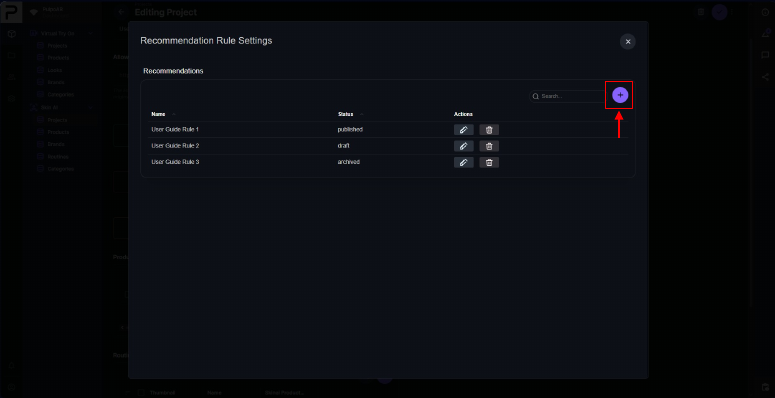
The list shows every recommendation in the project.
- Click + to add one.
- Click ✎ to edit one, or the trash icon to delete it.
Recommendation settings
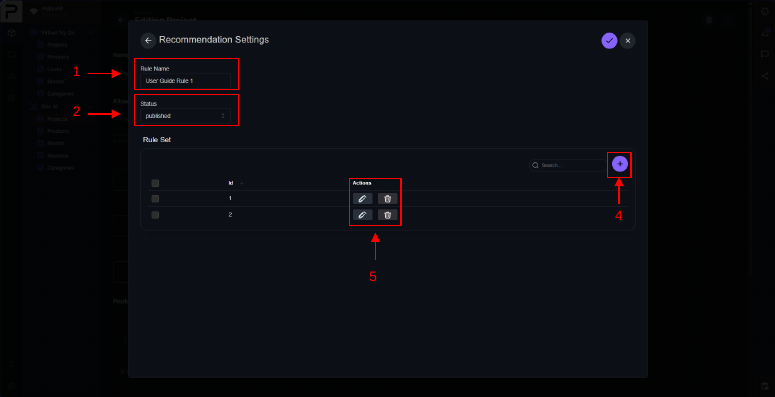
Each recommendation has:
- Rule Name: a name for your own reference.
- Status: whether the recommendation is active.
- Rule Sets: the conditions that trigger it. Click + to add one, ✎ to edit or the trash icon to delete.
Rule sets
A rule set decides when its products and routines are shown. First, choose how its conditions combine:
- Match Any Conditions (OR): shown if any condition matches.
- Match All Conditions (AND): shown only if every condition matches.
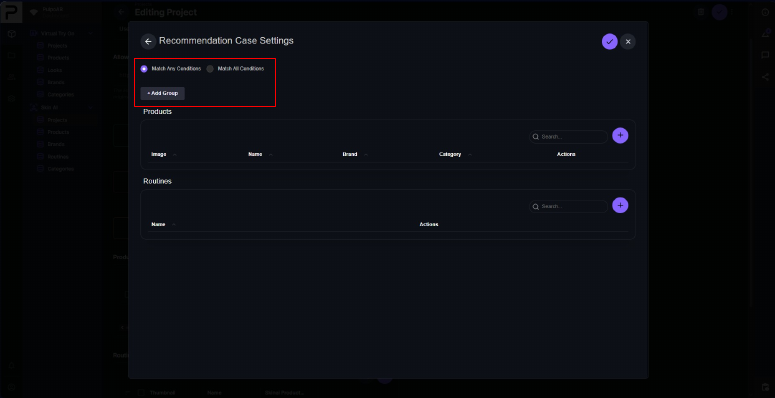
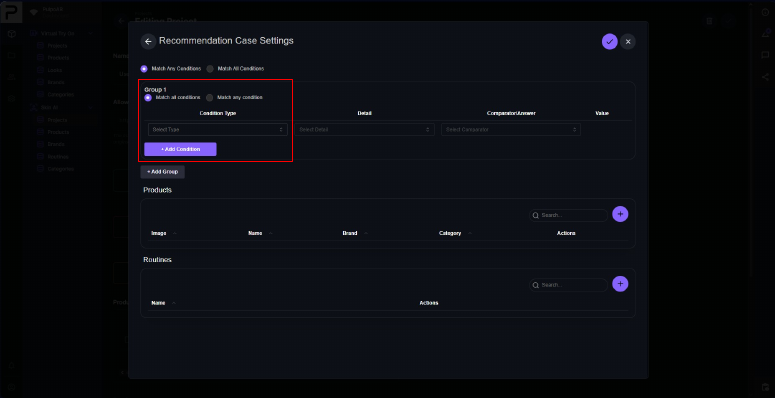
Then click Add Group. Each group has its own Match Any or Match All setting, and contains conditions. Click Add Condition and choose a condition type:
- Question: based on the customer's answer to a question.
- Problem: based on the customer's score for a skin problem.
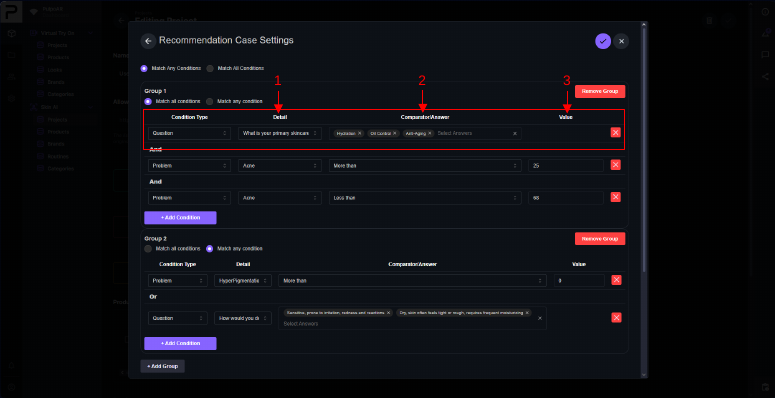
Question conditions
- In Detail, select the question.
- In Comparator/Answer, select the answers that trigger the recommendation.
Question conditions don't need a Value.
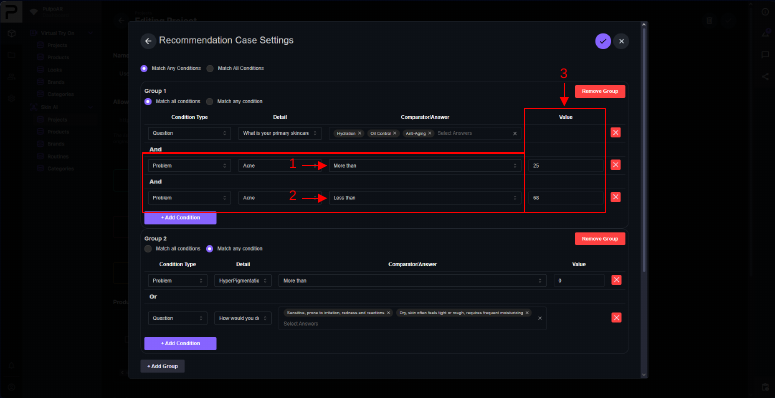
Problem conditions
- In Detail, select the skin problem.
- Choose a Comparator:
- More Than: triggers when the customer's score is above the value.
- Less Than: triggers when the score is below the value.
- Enter a Value.
For example, Detail Dryness, Comparator More Than, Value 60 triggers when the customer's dryness score is above 60.
Add products
Products must already be in the project.
-
In the rule set, click + next to Products.
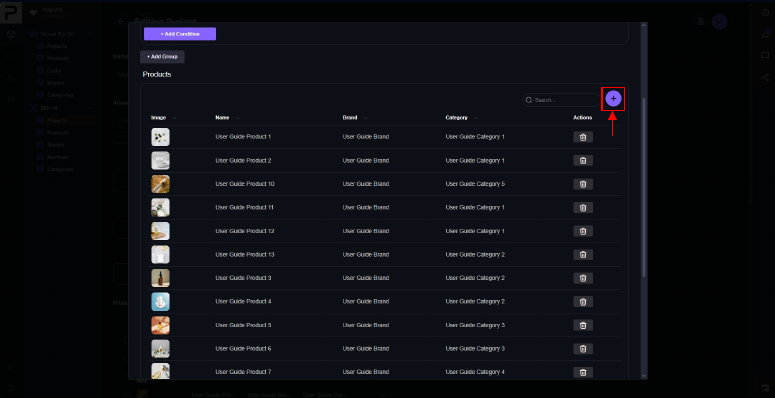
-
Select products with the checkboxes, then click + at the top right.
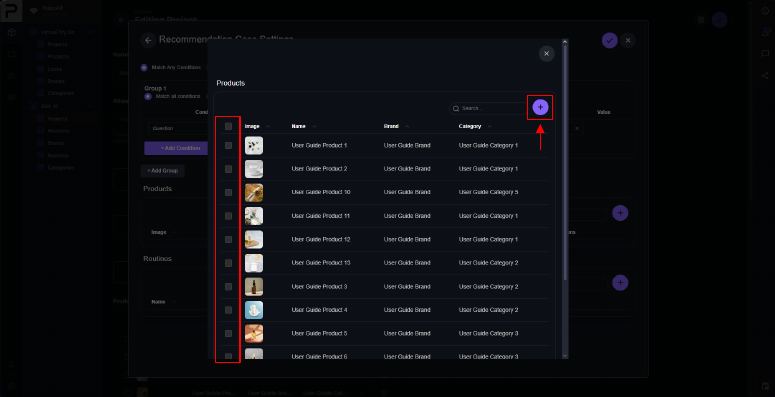
-
Close the list. To remove a product later, click its trash icon.
Add routines
The routines and their products must already be in the project.
-
Click + next to Routines.
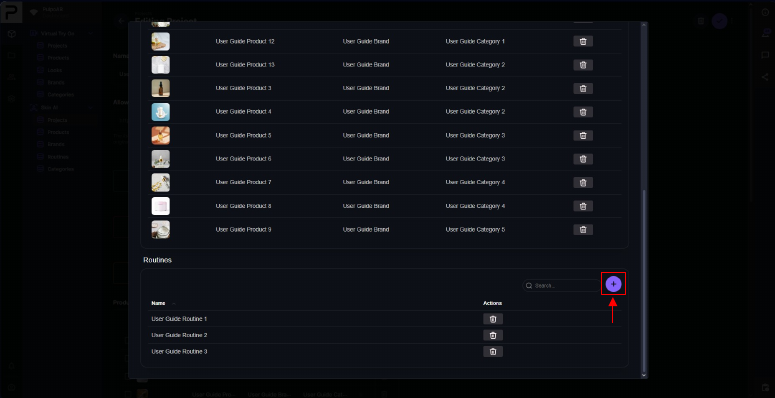
-
Select routines with the checkboxes, then click + at the top right.
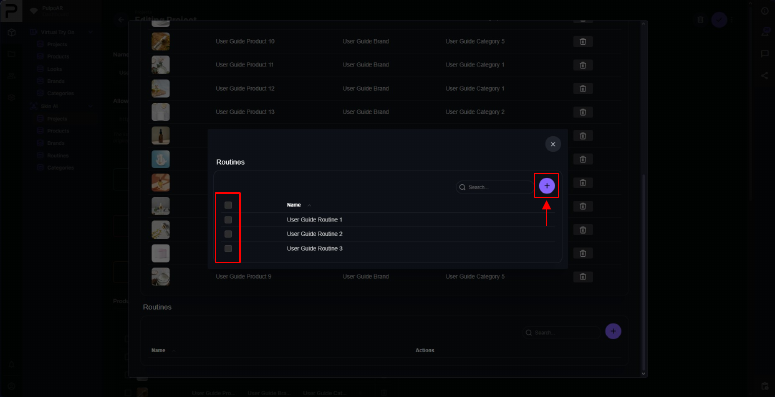
-
The routines appear in the rule set. To remove one, click its trash icon.
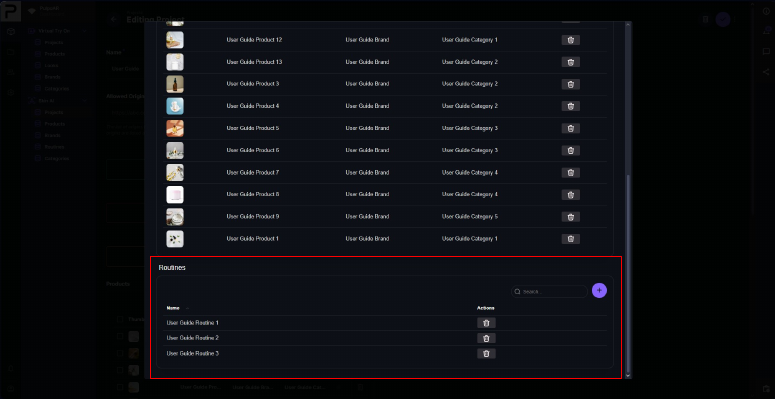
Tips
- Start simple: one rule set with two or three conditions for your most common customer types.
- Use Match All for narrow groups, for example dryness above 60 and a specific age answer. Use Match Any for broad ones.
- Name rules after the customer group they target, for example "Dry skin, mature", not after the products. Products change; customer groups don't.
- Test with realistic answers before publishing. A rule that never triggers is easy to miss.