Products
Products are what Skin Analysis recommends to your customers.
Add a product
-
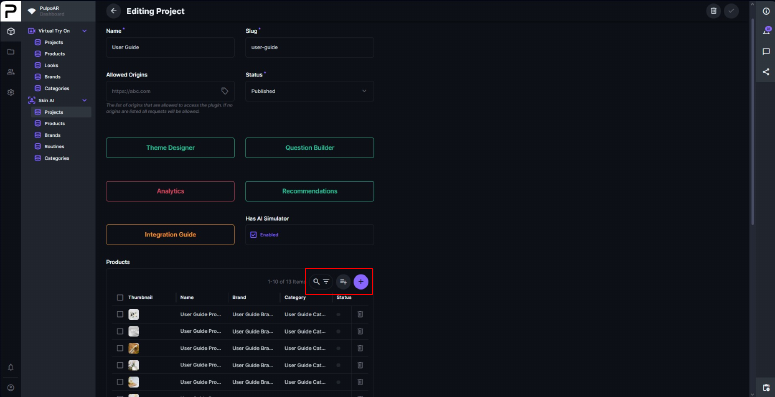
Open the project and go to the Products table at the bottom of the page.
-
Click + to create a new product, or Add Existing to add a product you already have. Use Search & Filter to find products by name, brand or category.
-
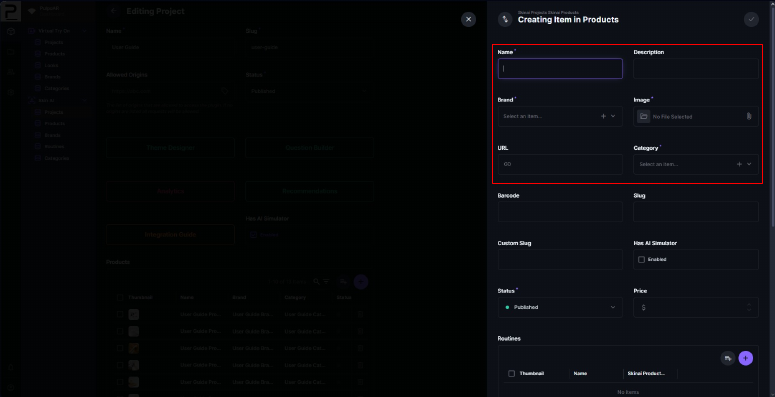
Fill in the required fields: Name, Description, Brand, Image, URL and Category.
-
Save.
You can also create products from Skin AI → Products in the left menu, or from the Routines, Brands and Categories sections.
Product image
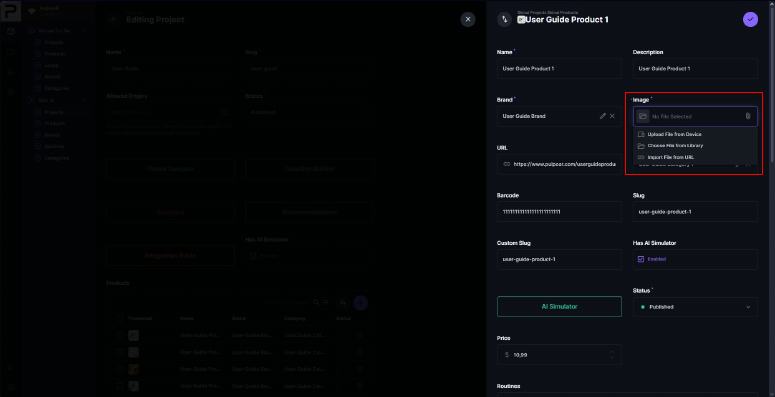
Click the Image box to add the product image. You can:
- Upload File from Device: pick a file from your computer.
- Choose File from Library: reuse a file you already uploaded.
- Import File from URL: paste a direct link to the image.
Tips
- Use a square PNG with a transparent background.
- Reuse images from the library instead of uploading the same file again.
- When importing from a URL, use a link that won't change.
Product fields
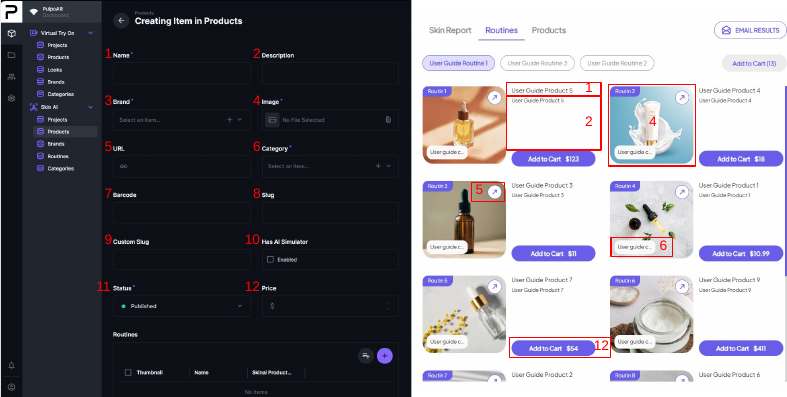
| # | Field | Description |
|---|---|---|
| 1 | Name | Product name. |
| 2 | Description | Shown on the result page. |
| 3 | Brand | The product's brand. |
| 4 | Image | Shown on the result page. |
| 5 | URL | The product page customers go to when they click the product. |
| 6 | Category | The product's category. |
| 7 | Barcode | EAN or UPC. Used for tracking. |
| 8 | Slug | The product's unique identifier. |
| 9 | Custom Slug | Your own identifier, for example your SKU. |
| 10 | Has AI Simulator | Turns the AI Simulator on for this product. |
| 11 | Status | Published, Draft or Archived. |
| 12 | Price | Shown on the result page. |
Barcode, Slug and Custom Slug are used to track products in Analytics and by your developers. Don't change them after the product is live.
Brands and categories
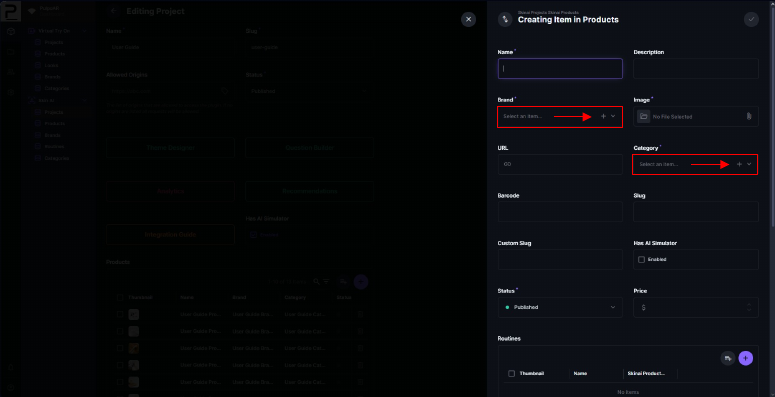
Next to Brand and Category in the product form:
- Click + to create a new brand or category. It's selected in the form and added to your library.
- Once one is selected, click ✎ to edit it.
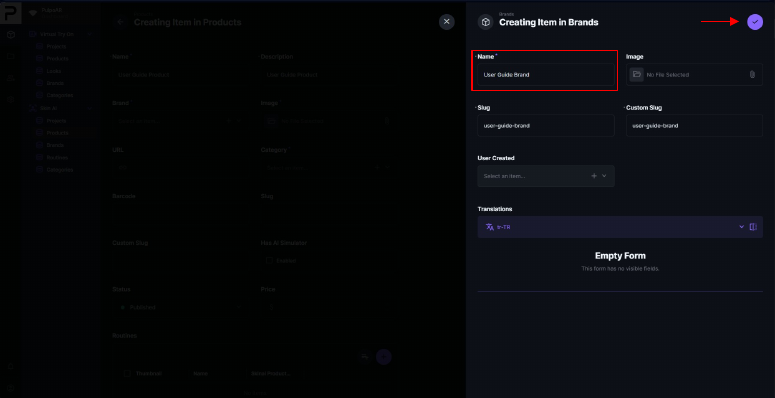
Fill in the Name. Image, Slug and Custom Slug are optional.
To edit brands and categories later, go to Skin AI → Brands or Skin AI → Categories.