Theme Designer
Theme Designer lets you match the experience to your brand without code. The layout stays the same, but you can change colors, fonts, text and which screens and buttons appear.
Open it with the Theme Designer button on your project page. The preview is on the left and the settings are on the right. Changes show in the preview as you make them.
Template and language
- Template: choose Advanced. It's the default and works best on desktop and mobile.
- Language: the experience is available in English, Turkish, Portuguese, Italian, French and Russian. It uses the visitor's browser language automatically. You can edit any text for each language.
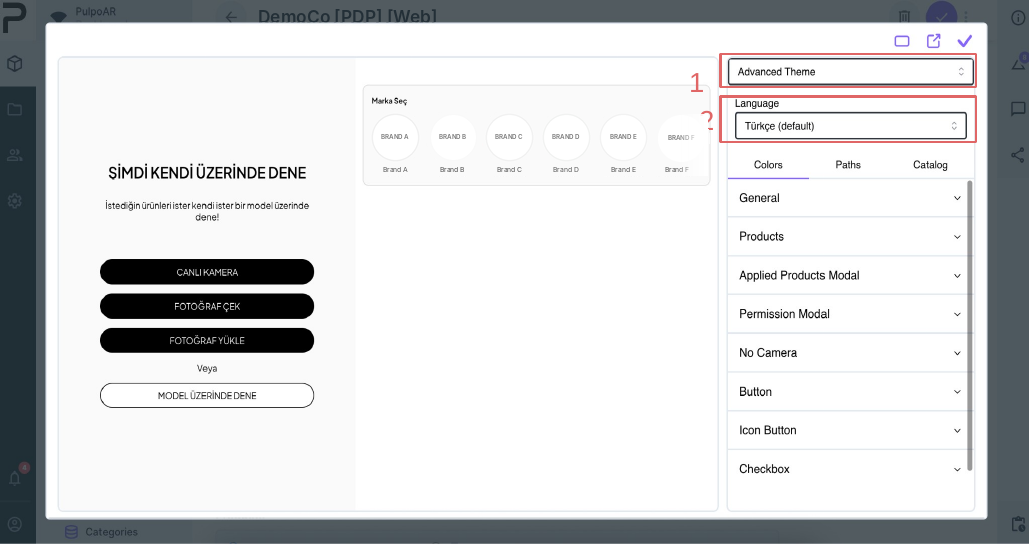
Colors
| Panel | What it changes |
|---|---|
| General | Font, text colors and backgrounds |
| Products | Product cards, including the out-of-stock label color |
| Applied Products Modal | The panel shown after a product is applied |
| Permission Modal | The camera permission screen |
| Button | Button background and text colors |
| No Camera | The screen shown when the camera isn't available |
| Icon & Checkbox | Icons and checkboxes |
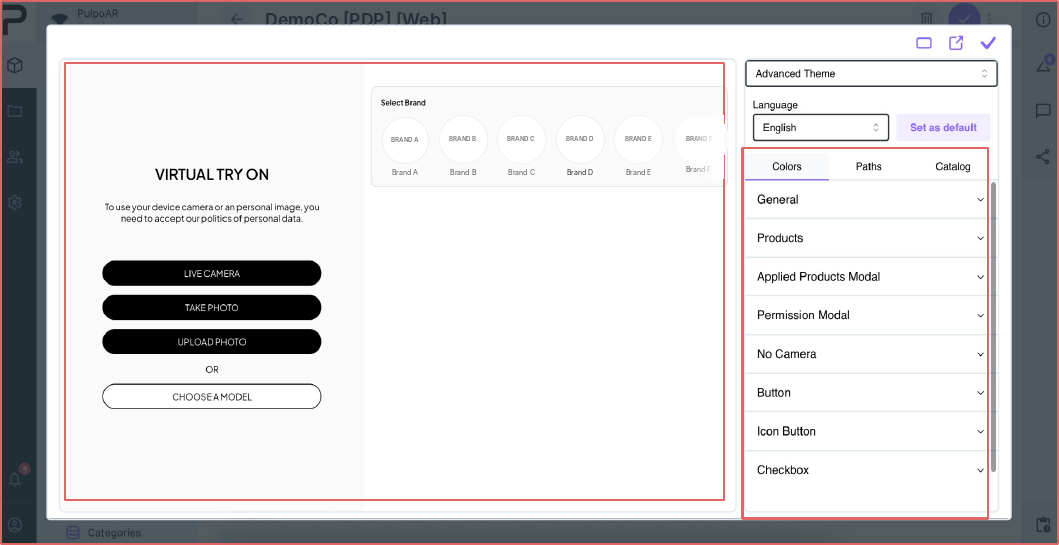
Paths
Paths control which screens and options appear, and the text on each screen.
| Panel | What it changes |
|---|---|
| Root | The start screen and which options it offers: live camera, choose a model, upload a photo |
| Camera Elements | Before/after slider and zoom controls |
| Camera / Upload Photo Permission | The consent text shown before the camera opens or a photo is uploaded |
| No Camera | The screen shown when camera access is denied. It sends visitors to Choose a Model. |
| Choose a Model | The model gallery. You can add your own model photos. |
| Take Photo | The "Take again" and "Use this photo" buttons |
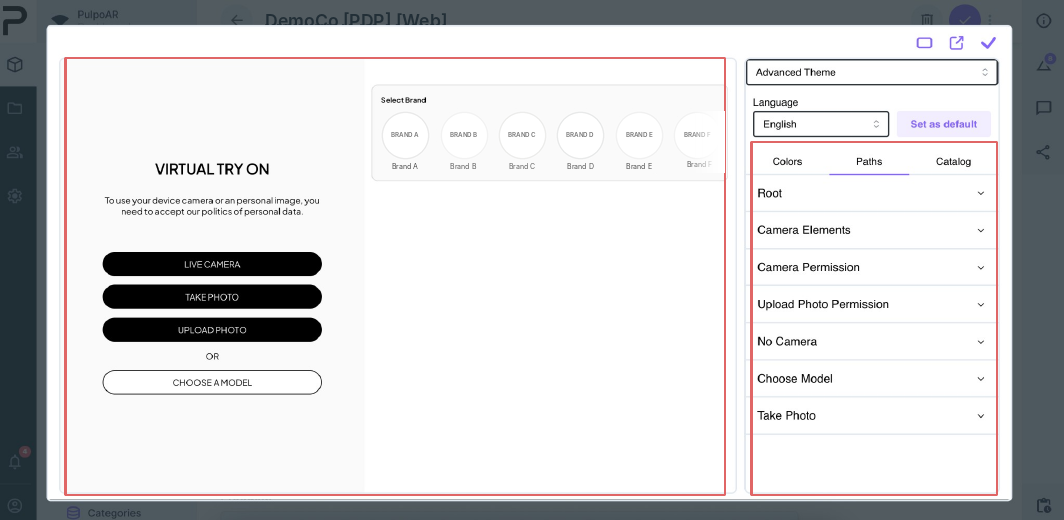
Replace the default consent text with text your legal team has approved.
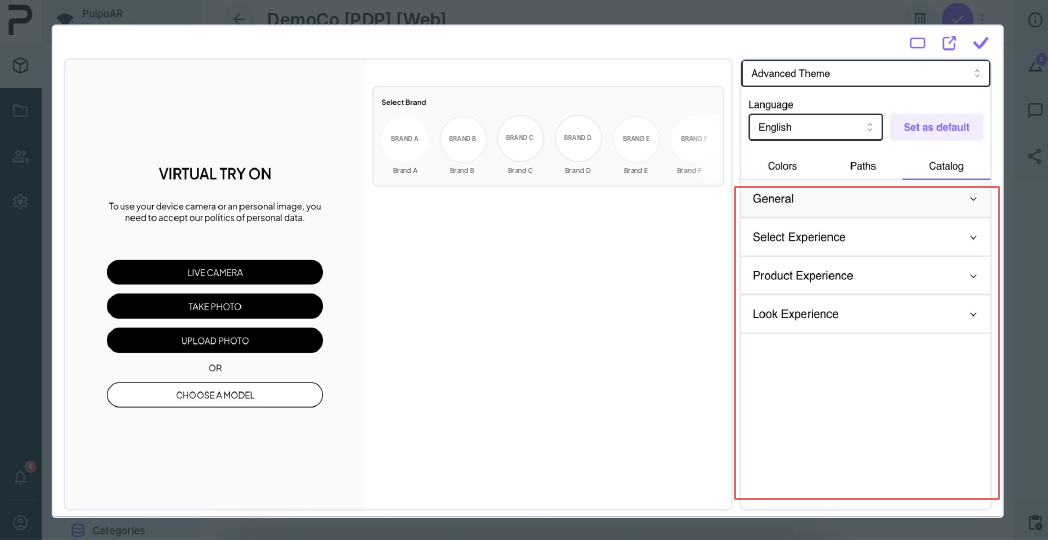
Catalog
| Panel | What it changes |
|---|---|
| General | The Add to Cart and Go to Product buttons (show/hide and text), and the Out of Stock label text |
| Select Experience | Labels for choosing between products and looks |
| Product Experience | Brand, category and product headings |
| Look Experience | Labels for looks |
Preview and save
- Switch between desktop and mobile preview.
- Open the preview in a new tab to try it like a customer.
- Click Save to apply your changes.
If the project is published, saved changes appear to customers right away. Keep the project in Draft while you experiment.
Need more control?
If Theme Designer isn't enough, your developers can build a fully custom interface. See Custom UI. They can also force a language with the lang parameter.