Makeup Virtual Try-On
Makeup Virtual Try-On shows makeup products on your customers' faces in real time. Customers can:
- Try products on a live camera, an uploaded photo or a model face.
- Pick individual products or ready-made looks.
- Compare before and after with a slider, and adjust intensity.
- Go to the product page or add the product to their cart.
You set up and manage everything in PulpoAR Studio: the catalog, how each shade looks, the design of the experience and your analytics.
Key terms
| Term | Meaning |
|---|---|
| Project | One Makeup Virtual Try-On experience, for example one website or one market. It has its own catalog, design and analytics. |
| Product | A makeup product line, for example a lipstick range. Belongs to a brand and a category. |
| Variant | A specific shade (SKU) of a product. Variants are what customers try on. |
| Digitalization | Setting how a variant looks in the try-on so it matches the real product. |
| Look | A set of variants customers apply with one tap. |
Project tools
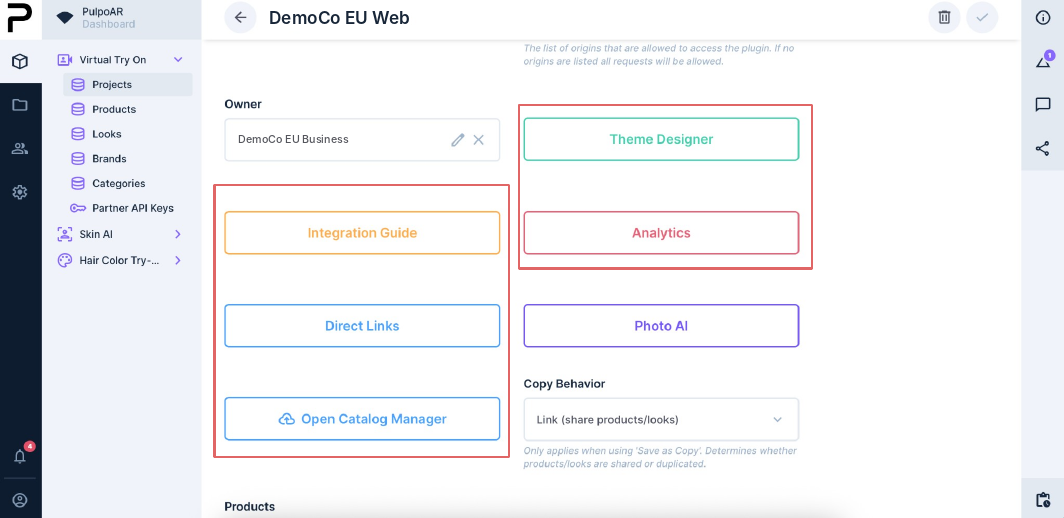
Each project page has these tools:
| Tool | What it's for |
|---|---|
| Theme Designer | Change colors, text and screens to match your brand. |
| Integration Guide | Embed code for your developers, with your project details filled in. |
| Analytics | Traffic and engagement once you're live. |
| Direct Links | Links and QR codes that open a specific product or shade. |
| Catalog Manager | Add and update your catalog in bulk with Excel. |
Setting up a project
- Create a project.
- Add products and variants, or import them in bulk.
- Digitalize each variant.
- Customize the design.
- Send the integration link to your developers. They can follow the Developer Guide.
- Publish the project and track it in Analytics.