Digitalization
Digitalization sets how a variant looks in the try-on, so the virtual result matches the real product.
Digitalize a variant
- Open the variant and scroll to Digitalization.
- Choose the variant's category, for example Lipstick.
- Adjust color, texture, opacity and the other settings. The preview updates as you go.
- Click Save.
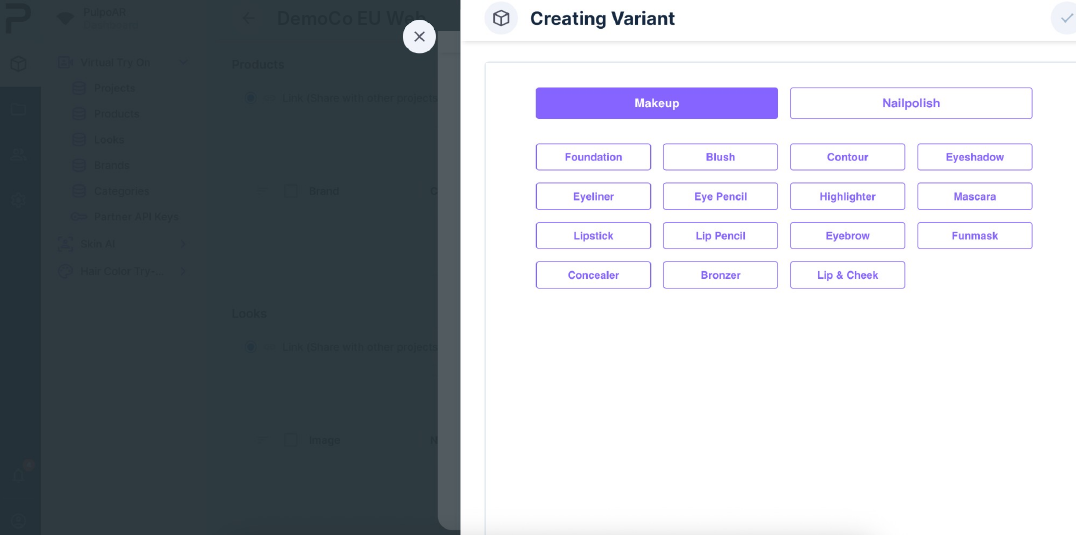
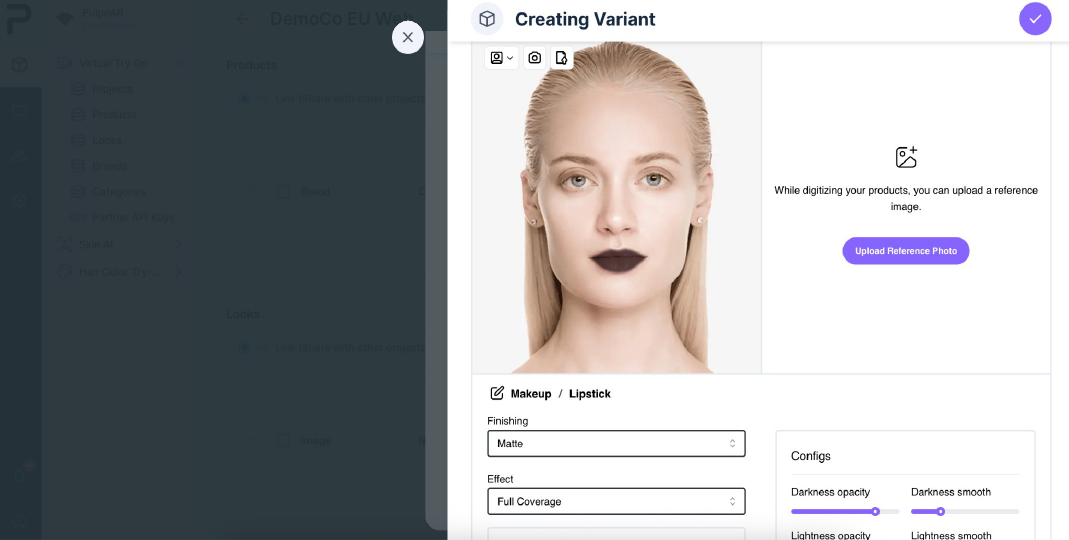
You can come back and adjust a variant at any time.
Supported categories
| Area | Categories |
|---|---|
| Lips | Lipstick, Lip Pencil, Lip & Cheek |
| Eyes | Eyeshadow, Eyeliner, Eye Pencil, Mascara, Eyebrow |
| Face | Foundation, Concealer, Blush, Contour, Highlighter, Bronzer |
| Other | Funmask, Nail polish (solid, textured, with effect) |
Tips
- Compare the preview with a photo of the real product in good light.
- Check the result on more than one face and skin tone.
- If you can't get a close match with the available settings, contact your account manager.
warning
Click Save after each change. Studio doesn't save digitalization changes automatically.