Stock and status
Products and variants have two separate fields:
| Field | Values | What it does |
|---|---|---|
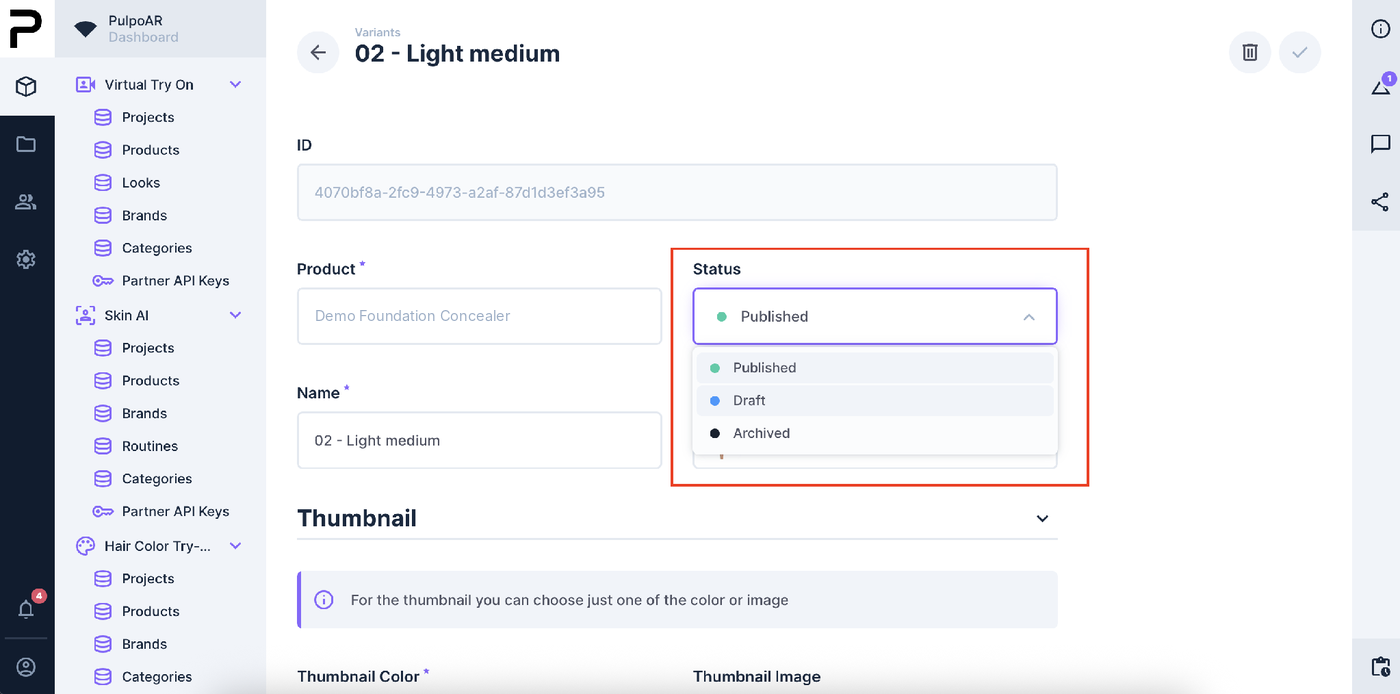
| Status | Published, Draft, Archived | Controls whether the item appears at all. |
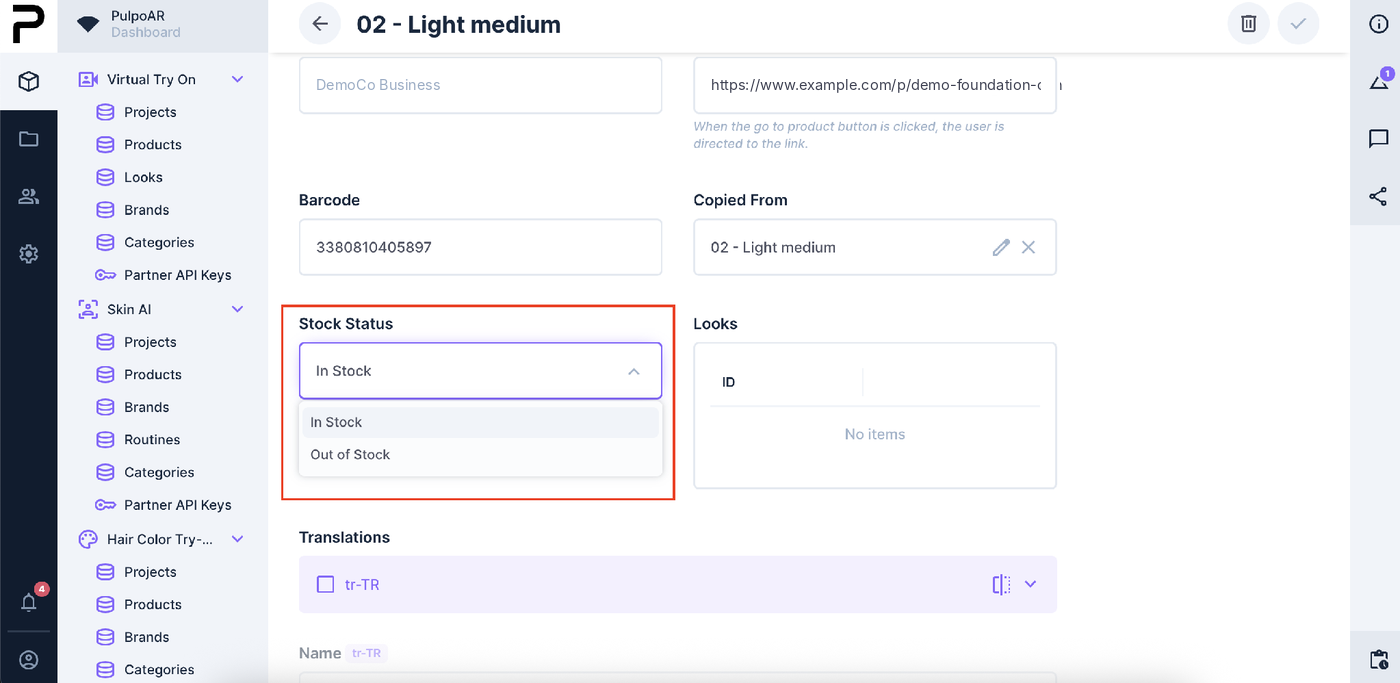
| Stock Status | In Stock, Out of Stock | Controls whether an out-of-stock label appears on the item. |
How they work together
| Status | Stock Status | Result |
|---|---|---|
| Published | In Stock | Shown |
| Published | Out of Stock | Shown, with an out-of-stock label |
| Draft or Archived | Any | Hidden |
To hide an item, change its Status
Setting an item to Out of Stock doesn't hide it. To hide it, set its Status to Draft, or Archived if it's gone for good.
Where to change them
-
Studio: on the product or variant page.
-
Catalog Manager: the Status and Stock Status columns in your Excel file. See Catalog Manager.
Customize the out-of-stock label
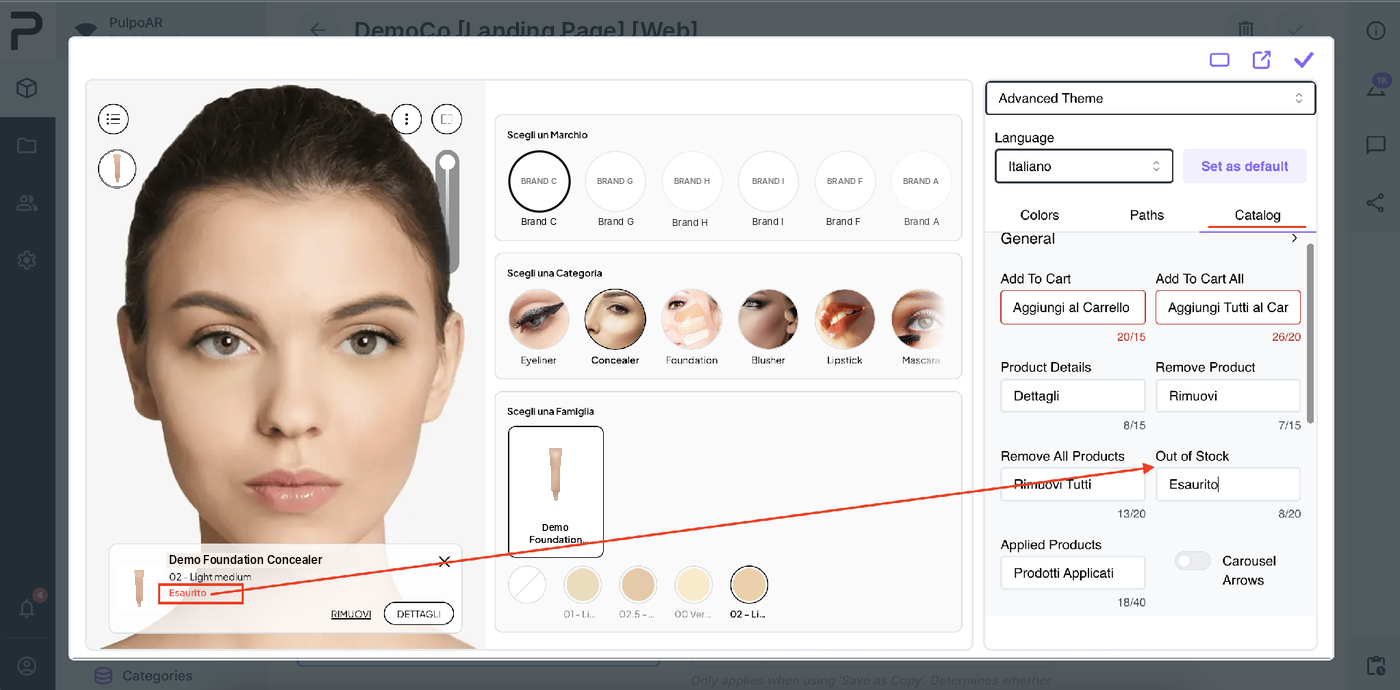
- Text: Theme Designer → Catalog → General → Out of Stock. You can set it per language.
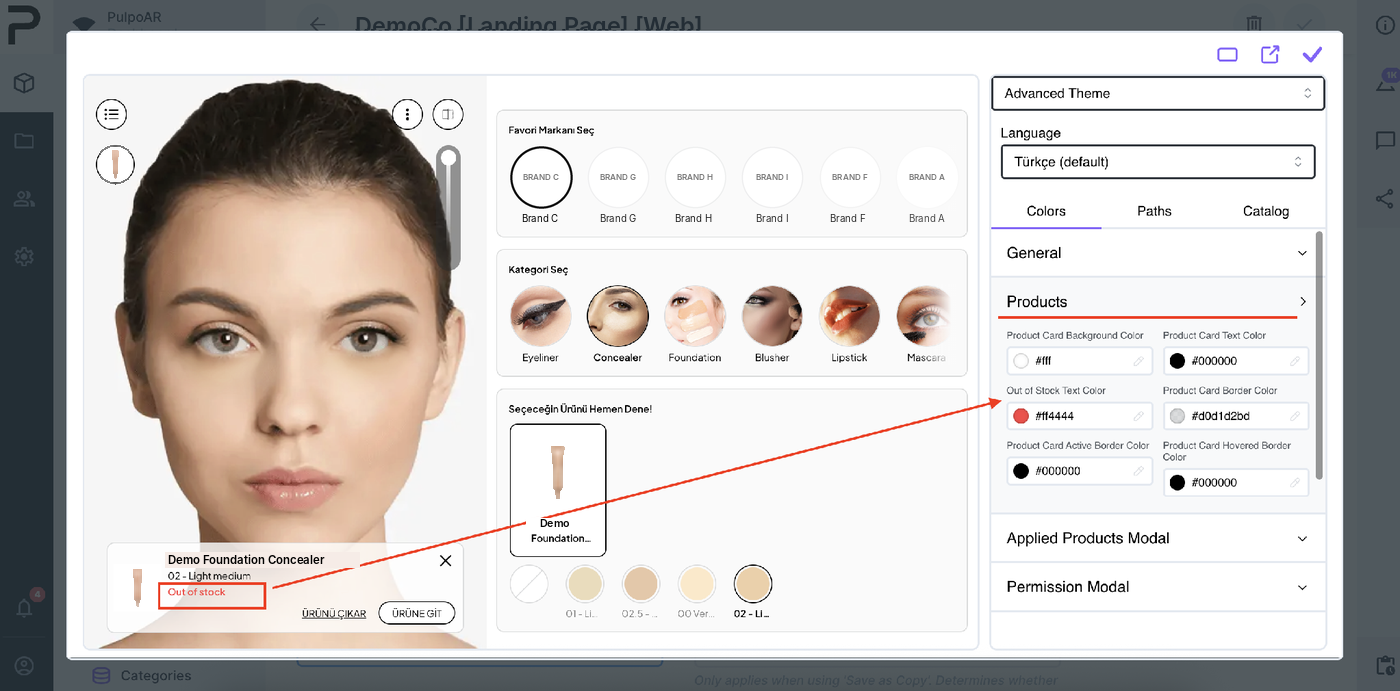
- Color: Theme Designer → Colors → Products → Out of Stock Text Color.
If your developers set out-of-stock text in code, that text takes priority over the Theme Designer text.
Automate this
Your developers can update stock with the Partner API, or change availability for a single visitor with SDK actions.