Hair Color Try-On
Hair Color Try-On lets your customers try hair colors in real time. Customers can:
- Try colors on a live camera, a photo they take or upload, or a model face.
- Pick a color family, such as copper, blonde or ash, and a specific shade.
- Compare before and after with a slider.
- Go to the product page or add the shade to their cart.
You set up and manage everything in PulpoAR Studio, under Hair Color Try-On in the left menu. It works like Makeup Virtual Try-On, with hair color products.
Key terms
| Term | Meaning |
|---|---|
| Project | One Hair Color Try-On experience, for example one website or one market. It has its own catalog, design and analytics. |
| Brand | The hair color brand a product belongs to. |
| Category | A color family, such as Copper, Blonde, Red, Ash, Black or Golden. In Makeup Virtual Try-On, categories are product types; here they're colors. |
| Product | A hair color product line. It groups one or more shades. |
| Variant | A specific shade of a product. Variants are what customers try on. |
| Digitalization | Setting the colors that make a variant look right on the customer's hair. |
The left menu
| Section | What it's for |
|---|---|
| Projects | Your Hair Color experiences. |
| Products | All hair color products across your projects. |
| Brands | Your brands. |
| Categories | Your color families. A category added here is available to every product. |
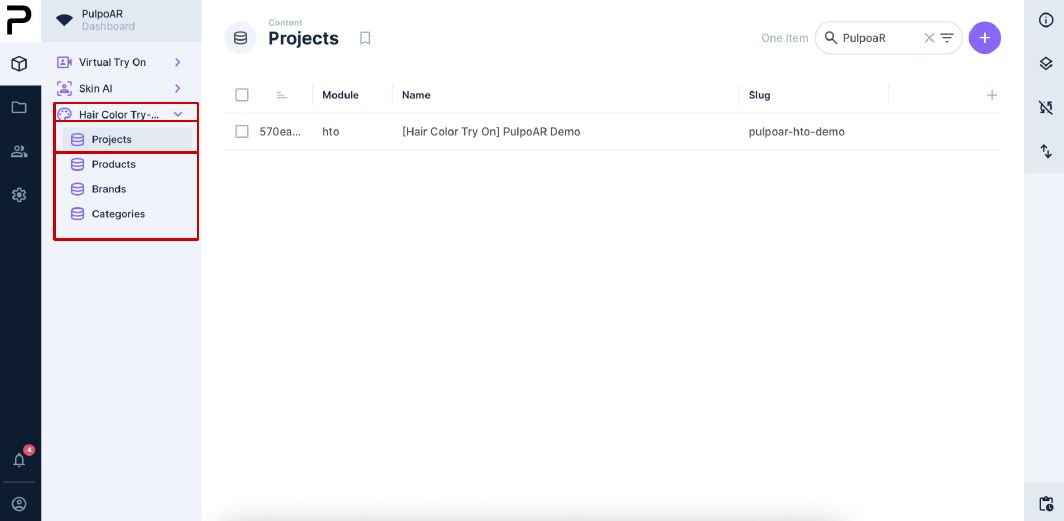
Plan categories around colors
Customers browse by color family, so name categories after what customers see in the color picker, not your internal product groups.
Project tools
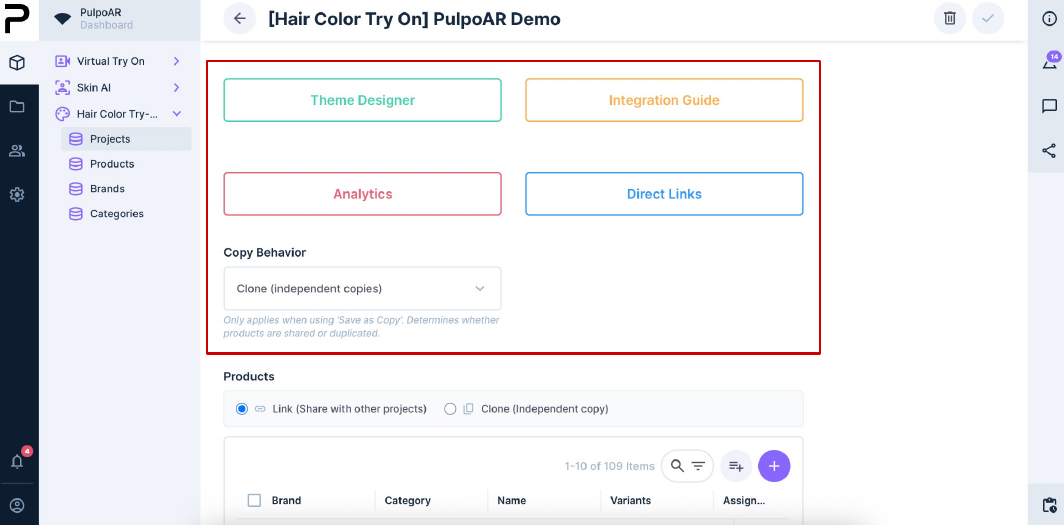
Each project page has these tools:
| Tool | What it's for |
|---|---|
| Theme Designer | Change colors, text and screens to match your brand. |
| Integration Guide | Embed code for your developers, with your project details filled in. |
| Analytics | Traffic and engagement once you're live. The dashboards work the same way as for Makeup Virtual Try-On. |
| Direct Links | Links and QR codes that open a specific brand, category, product or shade. They work the same way as for Makeup Virtual Try-On. |
| Copy Behavior | What happens to products when you duplicate the project. See Duplicate a project. |
Setting up a project
- Create a project.
- Add products and variants.
- Digitalize each variant.
- Customize the design.
- Send the integration link to your developers. They can follow the Developer Guide.
- Publish the project and track it in Analytics.