Digitalization
Digitalization sets the colors that make a shade look right on your customers' hair. You pick the colors from a reference image of the real product, so the try-on matches it as closely as possible.
Choose a preview
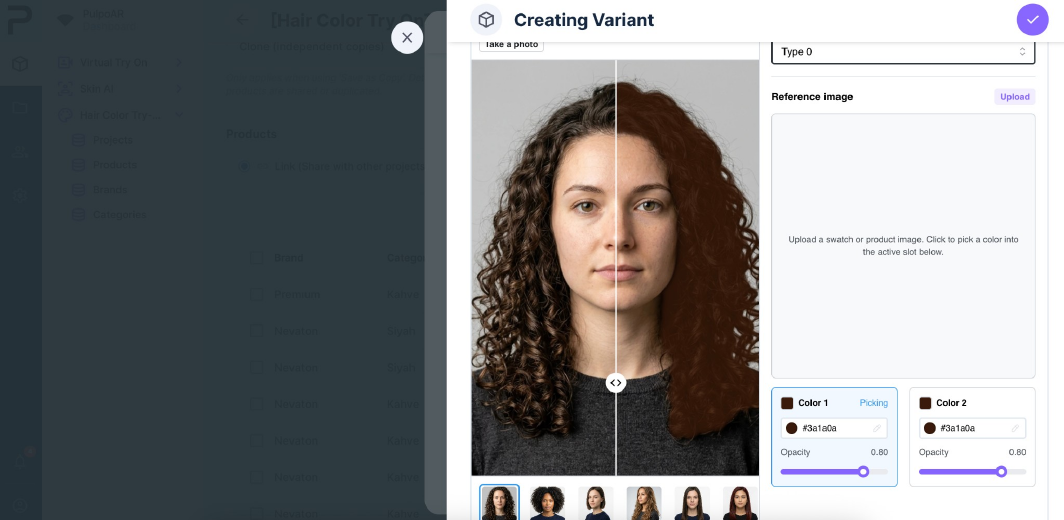
At the top of the Creating Variant form, choose what to preview the shade on:
- Choose a model: a model face. Start here.
- Real-time: your live camera.
- Upload a photo or Take a photo: your own photo.
Pick the colors
- Upload a color swatch, shade card or product photo in Reference image.
- Click the reference image to pick a color. It's saved in Color 1.
- Optionally, pick a second color for Color 2. Two different colors give a two-tone result, for example for highlights or balayage.
- Adjust the Opacity of each color. Lower opacity lets more of the customer's own hair color show through.
- Switch between the model photos at the bottom to check the shade on different hair.
Why two colors
Real hair color isn't one flat color. It changes along the hair and depends on the customer's natural color. For a flat shade, use the same color for both. For a multi-tone product, use two different colors.
Tips
- Always pick colors from the product's reference image, not from a color picker.
- Check the shade on light, medium and dark hair before saving. A shade that looks right on blonde hair can disappear on dark hair.
- Finish with Real-time to check it in real lighting.